Calendar
Calendar in Nozbe
When you start using Nozbe, the Calendar is in the sidebar under More — that’s where the views you use less often are kept. Click More to open it.
If the Calendar becomes part of your daily routine, you can add it to the tiles at the top of the sidebar so it’s always one click away.
To pin the Calendar as a tile:
• Click More in the sidebar and select Calendar from the list. • Click the … icon next to its name — a list of available options appears. • Select Pin as a tile.
To change the tile color:
In the Calendar’s settings view, click … > Change color, pick your preferred color, and confirm. You can change it at any time, and selecting Default color returns the tile to the standard setting.
Calendar in Nozbe is an intelligent list that shows all your tasks with a due date set, as well as reminders.
You can also filter the Calendar to see tasks of all space members, or tasks of a chosen user.
View the past and the coming months by tapping on the arrows in the top-right corner of the screen. You can also tap “Today” to access the list of tasks scheduled for today.
If you want to focus on tasks from specific days, you can collapse the day you don’t need using an arrow next to that day. You can also hit the “+” icon to add a new task to a chosen day.
You can also drag and drop tasks between different days in the calendar. Dragging a task to a different day will also update its due date.
If you added time attributes to any task that shows up in the calendar, a summary of time needed and time spent for all active tasks scheduled for that day will show up below the day’s header. Also, a summary of time needed and spent for all active tasks in the period displayed in the calendar will appear on the top bar of that view.
Calendar’s menu
Tap on the “…” icon to open the Calendar details menu:
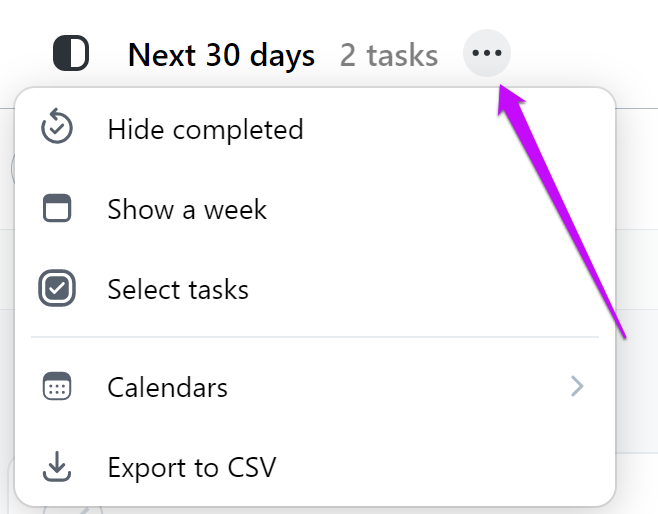
Hide completed / Show all completed: hide or show completed tasks in your Calendar
Show a week / Show the next 30 days: use this option to switch between the weekly and the monthly view in your Calendar:
Select tasks: you can select multiple tasks to edit them at once:
Confirm your changes with the “Done” button. Otherwise, they won’t be saved!
Calendars: here you can enable the integration with Google Calendar and the integration with Outlook Calendar. Nozbe will create a sub-calendar in the app you integrate with it. All tasks with due dates assigned to you will appear in the integrated sub-calendar. Events added to the sub-calendar with show up in Nozbe as well.
Export to CSV: you can export your tasks from Calendar to a CSV file
Future versions of recurring tasks
In the Calendar view, you can also see future versions of recurring tasks. They are greyed out, and are marked with a “⟳” icon.
Your recurring tasks automatically repeat and show up in your calendar each time it’s due. In Nozbe you can change the future recurrence of such tasks.
Changing the date of a single occurrence
Sometimes you need to reschedule just one instance of a recurring task without affecting the rest of the series. For example: your task repeats on the 20th of every month, but in June you want to handle it a few days earlier.
Open the Calendar view in your Nozbe app and find the upcoming occurrence — it appears as a ghost task on the scheduled date. Tap the ghost task and change the due date to your preferred date (e.g. June 17th).
When prompted, select “Only this task” to confirm the change applies to this occurrence only.
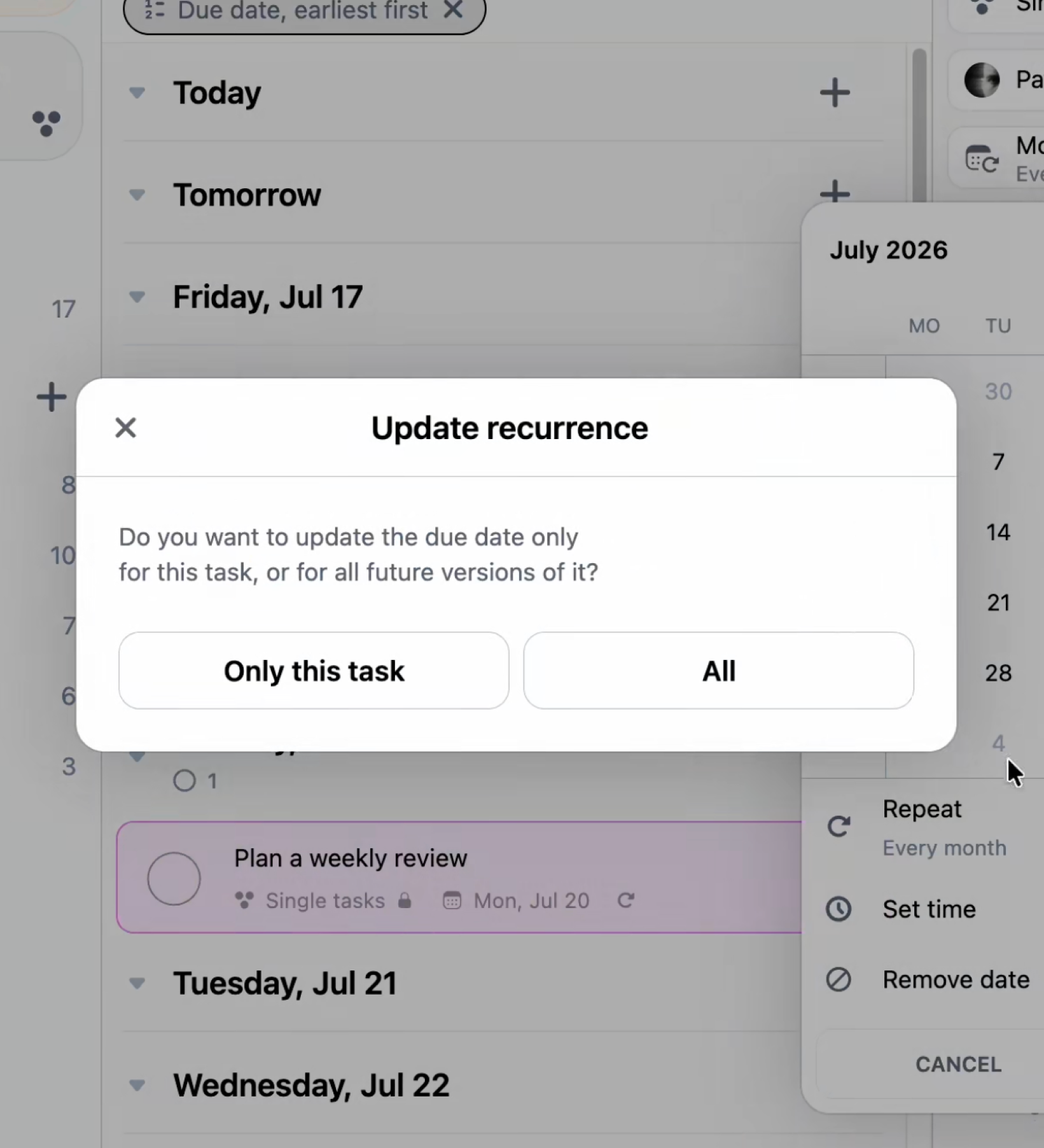
The July instance will now appear on the 17th, while all other monthly occurrences remain on the 20th as originally scheduled.
Things to know
Ghost tasks represent future occurrences of a recurring task. They become active tasks as their due date approaches. Editing “Only this task” affects just that one instance — the rest of the series stays unchanged. If you want to change the recurrence for all future tasks, open the task and edit the repeat settings, then select “This and all following tasks” when prompted.
Note: You will not receive a warning if the change does not affect the order in which the task occurs.
Week numbers in the calendar view
To display week numbers in your Calendar:
Go to Account Settings
- Select Appearance
- Toggle on Show Week numbers in Calendar
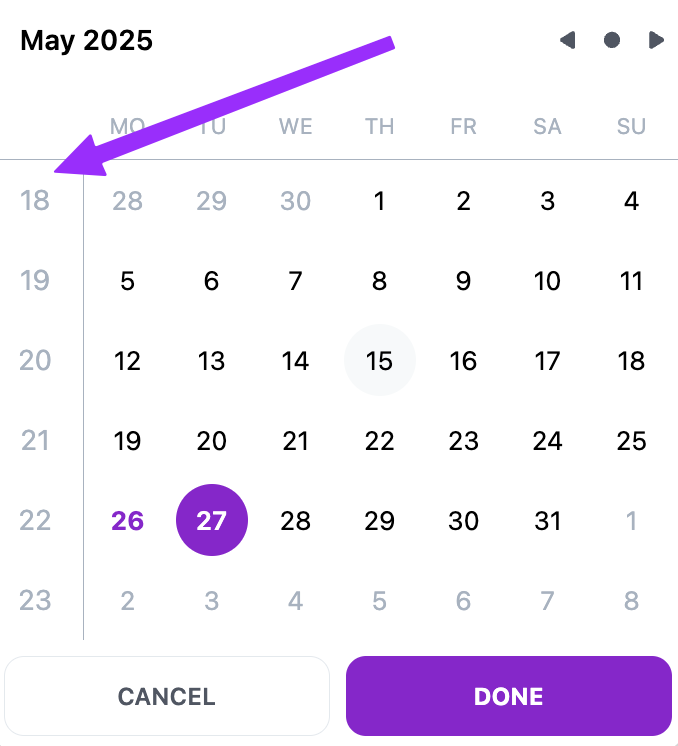
- Once activated, the week numbers will appear on the left side of the calendar view.